Customizing the Operating System
2026-04-30Reports
I just love tinkering with my devices, and have a design philosophy.
Sorry KDE,
"Nothing by default, just there when needed."
Which I know is not a perfect system because sometimes things get lost. And I have to search them which isn't very efficient. Since I have started from the drawbacks and pain points lets just continue with it.
- Things get lost sometimes.
- Moving the mouse can cause different panes to open.
- There are only limited places to hide things.
- Sometimes you just wish you could see things without having to do anything.
Now that we've got that out of the way, lets start with everything that I have set up:
So, by now you might have already realized what the theme for today is. Yes!, it's Extreme Minimalism.
Let's start from the bottom up:
Pre-Desktop
BIOS
Fortunately my BIOS boot animation is very pretty, and I love that the logo of my vendor also somewhat resembles Arch Linux. It's the new ASUS Zenbook Logo, which is located at /sys/firmware/acpi/bgrt/image on my system.
If you know how to extract the actual animation from the BIOS please tell me how, I want to make it into a plymouth boot animation.
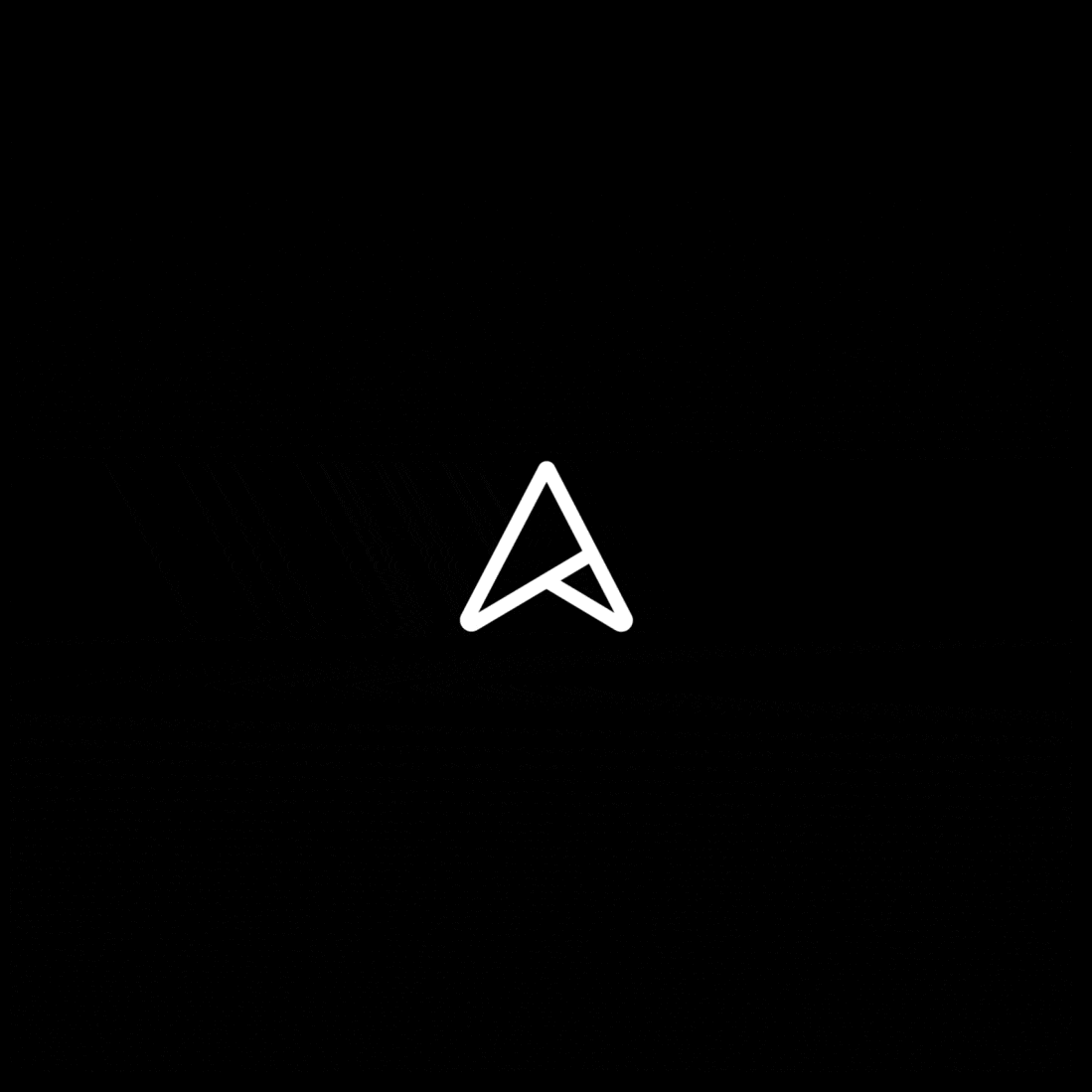
This is the end result image after the BIOS animation completes and before it hands over control to the Bootloader.
Bootloader
I use systemd-boot which itself is super minimal. But, I have configured it to be invisible by setting the timeout to be 0.
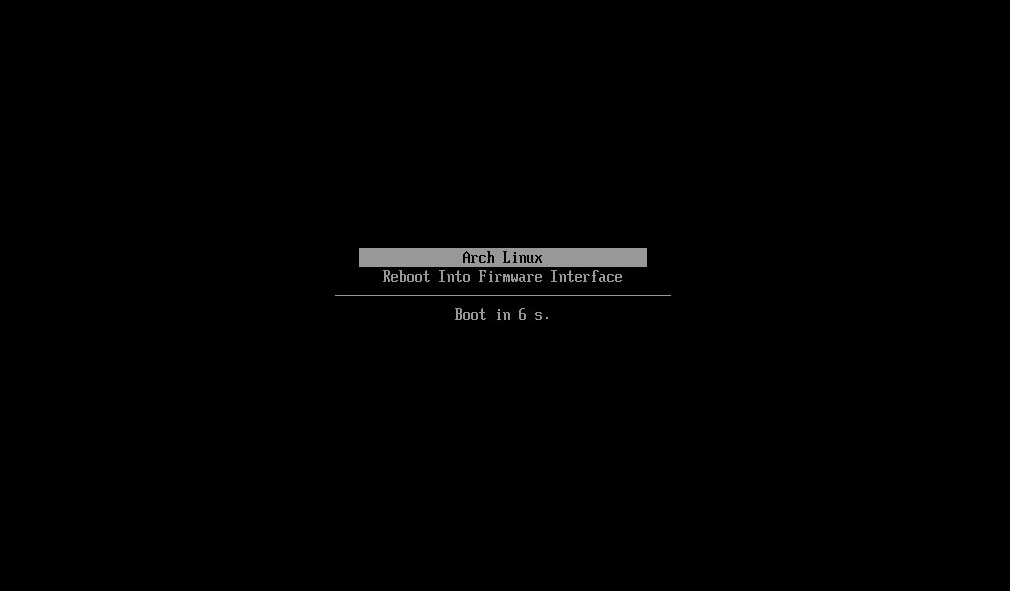
It can be done by editing /boot/loader/loader.conf and setting timeout 0. Here comes the philosophy of keeping things hidden while still accessible. Because, holding shift while the system boots will let me see the Bootloader Entries if it is necessary.
I normally keep two kernels in case one breaks. Above image is only for reference to show how minimal the UI of systemd-boot is.
initramfs
Since I use the systemd ecosystem including the bootloader and init system. I have used mkinitcpio to build a systemd dependent initramfs. Hence I use the the Hook List table to set up mkinitcpio.
I also add plymouth to the hook in /etc/mkinitcpio.conf:
HOOKS=(base systemd autodetect microcode modconf kms keyboard sd-vconsole block filesystems fsck plymouth)Unified Kernel Image (UKI)
The default Arch Linux UKI has it's own splash image. And I don't like different things flashing when the system boots. So, I change the splash image of the Arch Linux UKI my BIOS image mentioned above. For that I edit /etc/mkinitcpio.d/linux.preset to have:
default_options="--splash /sys/firmware/acpi/bgrt/image"Kernel cmdline
In order to supress the messages in the boot process I put the following arguments to /etc/kernel/cmdline:
loglevel=3 quiet splashThe log level and quiet arguments supress the messages while the splash enables the splash screen which will come into play when plymouth is installed.
Plymouth
It is a system that uses Kernel Mode Setting (KMS) to set the native resolution of the display as early as possible, then provides a splash screen leading all the way up to the login manager.
After installing plymouth through pacman, the default splash screen it uses is BGRT which stands for Boot Graphics Resource Table which also utilizes the spinner theme to put a spinner on the bottom of the splash screen.
The spinner theme the Arch Linux logo which I don't want there. So, I delete it from /usr/share/plymouth/themes/spinner/ and delete all animation and throbber images too just to make everything clean. The Arch Linux and spinners will be gone on the next boot.
But, my device boots really fast, so after the kernel splash screen, there is a blank screen for a second then plymouth launches which lasts for not even a second. This causes me to see only a flicker of plymouth. So I have delayed the launch of it by 15 seconds.
In /etc/plymouth/plymouthd.conf:
[Daemon]
ShowDelay=15
Well, you might ask why delay plymouth instead of just uninstalling the it entirely. It is because plymouth also appears during poweroff and reboot while the system is shutting down, which I want to have.
GDM
I use Niri as my window manger of choice. But, have a fallback GNOME session since niri plays well with GNOME's set of utilities.
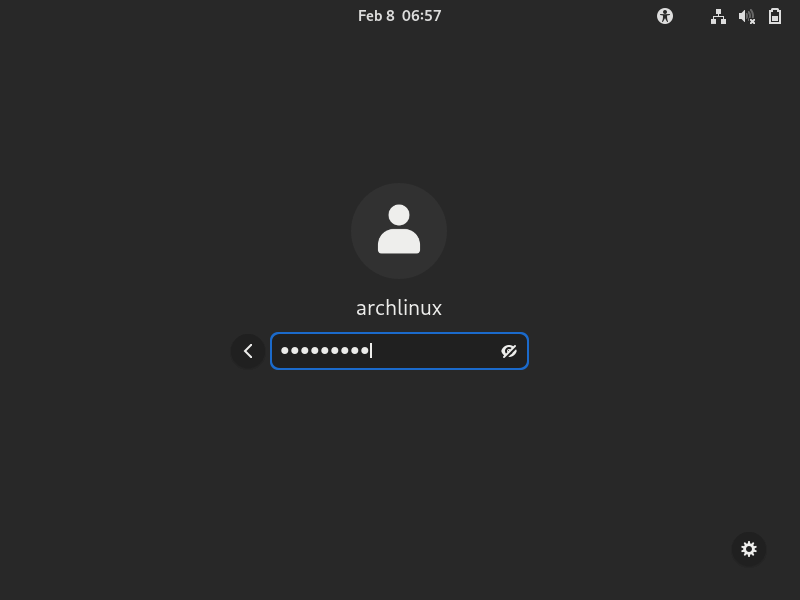
The default Arch Linux GDM has the Arch Linux logo there which I remove using the GDM Settings application. There might be a way to remove it via the command line but I am lazy and I just delete the application once I change this setting and it remains persistent. Tell me if you know the way. ;)
edit: 2026-05-27: start
greetd
I switched from GDM to greetd to have the same style on the login manager which I have for the lock screen. Which also meant sacrificing the lock screen of the GNOME session and using something new that I know nothing about. I starting tracking the setup for greetd in a markdown file.
For the greeter I use niri as it's compositor and quickshell for the UI.
The immediate issue was, the GNOME Keyring not being unlocked by default. Which was easily fixed by editing /etc/pam.d/greetd with the following PAM(Pluggable Authentication Modules) setup:
#%PAM-1.0

auth       required     pam_securetty.so
auth       requisite    pam_nologin.so
auth       include      system-local-login
auth       optional     pam_gnome_keyring.so
account    include      system-local-login
session    include      system-local-login
session    optional     pam_gnome_keyring.so auto_start
Using greetd meant living with the logs when going from greeter to compositor. So, I went down a rabbit hole. I tried disabling systemd logs for user, for system, for greeter user and what not. I used google, duckduckgo, chatgpt, gemini, heck even grok to find a solution, but nothing helped.
Then, I found out about a side effect of the framebuffer console boot options from the Linux Kernel Documentation saying, "One side effect that may be useful is using a map value that exceeds the number of loaded fb drivers. For example, if only one driver is available, fb0, adding fbcon=map:1 tells fbcon not to take over the console."
So, I appended fbcon=map:1 to /etc/kernel/cmdline.
This completely disabled the console, which meant no text will be printed during switch from greeter to the compositor. But, this also meant that there is now no way to go to ttyX if I had to debug the system in case it breaks. And since it's Arch Linux, noone can guarantee that it would not.
I then went down on another rabbit hole trying to enable the other framebuffers from userspace command line after system fully booted. Which I couldn't solve.
Looking for other console options, I found kmscon, and out of sheer curosity I installed it and rebooted the system. And I can't state the joy I felt when I tried to switch to tty2 and it dropped me into a console. I also found out that it supported fonts and can use pango which I loved and immediately switched to a Nerd Font. I also themed it with the same colors that I theme my Terminal Emulator.
It was as easy as sudo pacman -s kmscon then reboot. By, default only tty2 with ctrl+alt+f2 works, but other sessions can be enabled with systemd too.
So, there it is, another minimal component, greetd added to the my system replacing GNOME's GDM. With the pretty-pretty kmscon, which is my love at first sight.
edit: 2026-05-03: end
Poweroff and Reboot
I hate the annoying systemd wall messages when shutting down or rebooting the system:
Broadcast message from user@host (Thu 1970-01-01 00:00:00 UTC):

The system will power off now!
So I use this one liner from Kira-NT/disable-systemd-wall-messages to disable the wall messages:
curl -Ls https://github.com/Kira-NT/disable-systemd-wall-messages/blob/HEAD/install.sh?raw=true | sudo sh -sAnd for the times I use terminal to reboot or power off I put the following shell alias for them:
alias reboot="reboot --no-wall"
alias poweroff="poweroff --no-wall"
Desktop
All that for the 10 to 20 seconds it takes to get from hitting the power button into my desktop.
But, now we are finally at the desktop.
Niri
As I have already mentioned, I use Niri as my desktop of choice. Lets start from then start then!
Wallpaper
awww is what I use to set the wallpaper since it has the ability to set wallpapers to different layers in niri. I start the daemon as follows:
awww-daemon -n wp-front &
awww-daemon -n wp-back &
The wp-front is the namespace for actual layer where niri's wallpaper will be set. The wp-back is the namespace for the layer behind the desktop where niri's overview backdrop will be set.
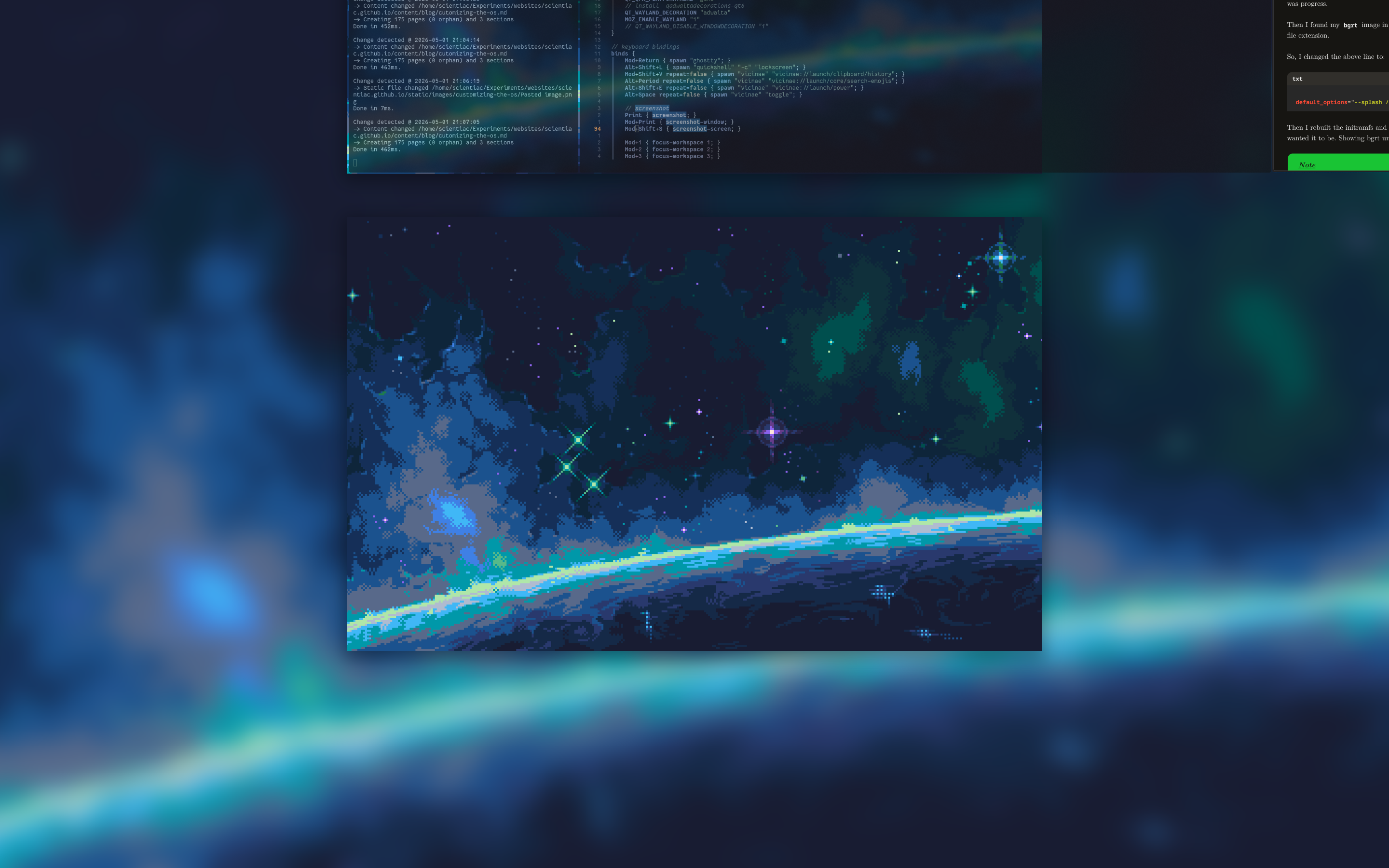
I set my wallpaper on wp-front and a blurred version of the same wallpaper on wp-back to get the above results. With the following setting on the niri config:
layer-rule {
    match namespace="wp-back"
    place-within-backdrop true
}
and the command to set:
awww img "$BLURRED_WALLPAPER" -n wp-back &
awww img "$SELECTED_WALLPAPER" -n wp-front &
Launcher
In the past I used to use very minimal and customizable launchers like rofi, wofi and tofi but after watching enough number of ads for the Raycast launcher, I fell in love with vicinae.
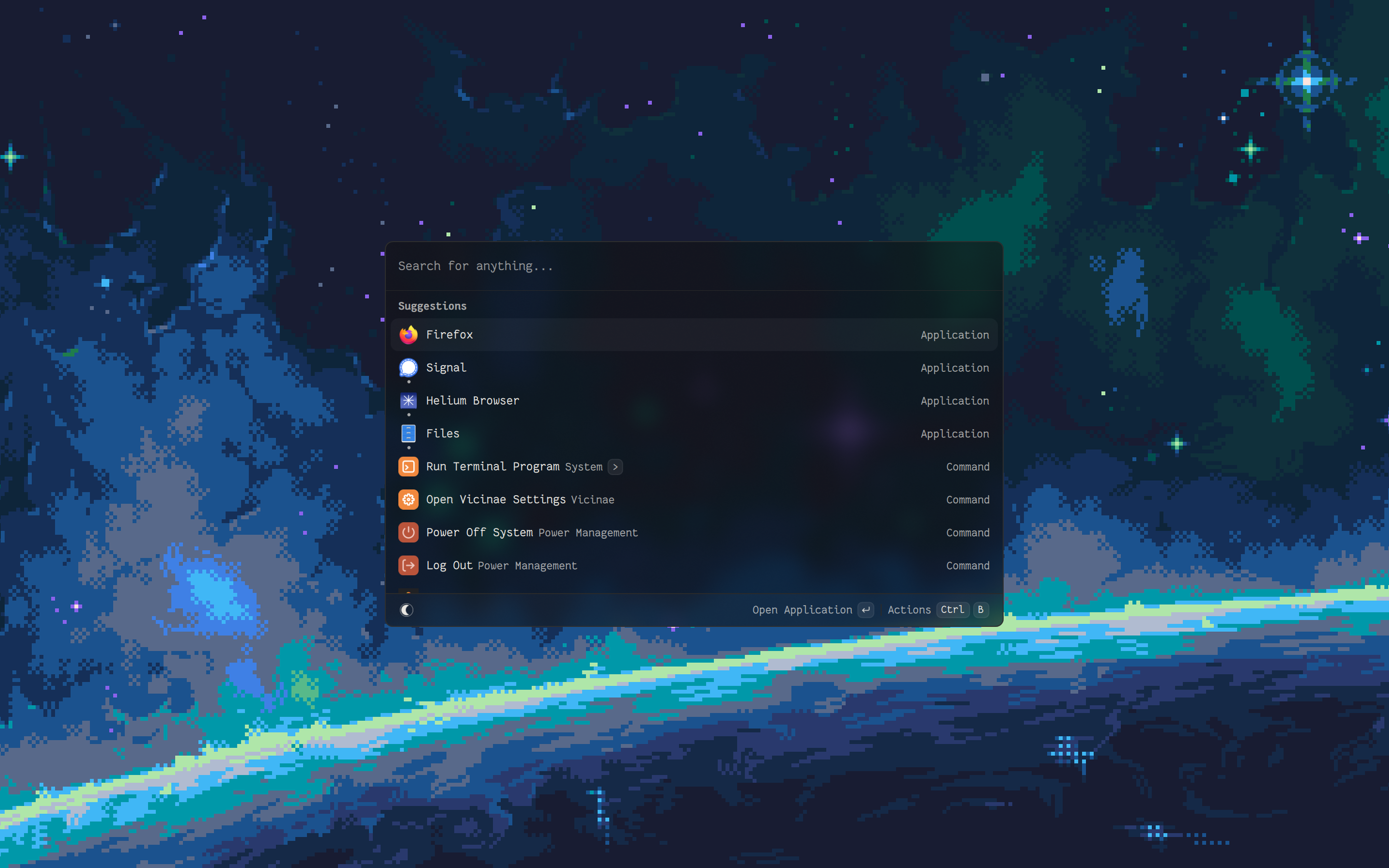
It just works! The only thing I changed was the fonts to be FantasqueSansM Nerd Font Propo, the Icon theme to Morewaita and enabled blur.
The Shell
I decided to write this blog post because of this shell. It gives me joy with a mix of pain and impostor syndrome to call it mine. I wrote it using AI in quickshell. One one hand, It'd had taken me weeks to completely write all this myself, but I did it in a single day, and it isn't system critical so I guess I get a pass for not doing it myself.
Lockscreen: I decided to recreate the swaylock-effects lockscreen with a blurred screen setup using quickshell.
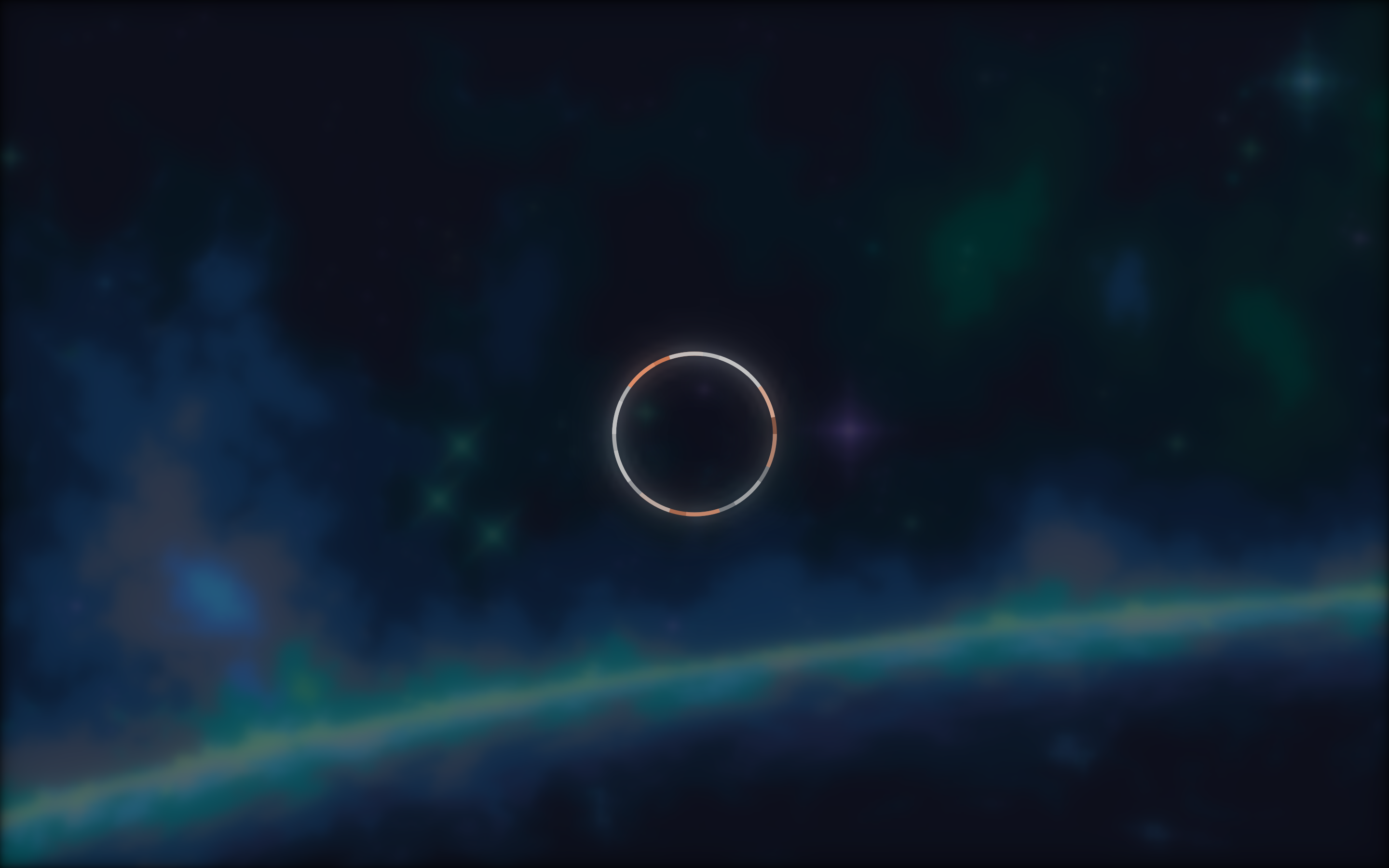
I want to make the same UI for greetd and use it for the Display Manager too but, I am afraid GNOME will not like it when I use something other than GDM. [ I did it! ]
OSD: For OSD, I took design inspiration from the IOS dynamic island and decided to create an interactive bottom notch.
Bar: For the Bar, I took inspiration from the OSD and made it top notch.
Notifications: Similar to OSD and Bars I made the notifications with a corner swoop.
As a whole it looks like this:
Sorry for the flashbang.
Almost everything in the shell is quickshell now, which replaced various applications like:
way-edgesfor barswayosdfor brightness and volume OSDbattery-osdfor battery notifications and OSDswaylockfor lock screenswayncfor notifications
This is Fun
Funny how describing the setup of the 10 second boot process took more words than describing the desktop. But, if we consider "A picture is worth a thousand words." the desktop wins by a long shot!
If you see some lag, it's because of the screen record. I have applied this "Nothing by default, just there when needed." philosophy everywhere from bootloader to shell (desktop),browser, editor and individual applications if possible. This is how I like it. Tell me if you like it.
Also please give me recommendations if you have any.
See you on the next one!